YUV Sensor (V4L2 Sensor)
Important
All the bash commands shown here are based on Genio 720-EVK and an OmniVision OV5640 sensor. For Genio 520-EVK, users can follow the same steps to perform the setup by changing the name from 720 to 520. You might get different operation results depending on the platform you use.
This chapter shows how to receive YUV sensor data and directly dump it to the DRAM under V4L2 Sensor architecture on Genio 520/720-EVK.
Camera Daughter Board
The YUV camera DTB for Genio 520/720-EVK is IoT-CAM-DTB-D9.
It contains an OmniVision OV5640 sensor.
The camera DTB connects with the Genio 520/720-EVK through a 22-pin FPC CAM-DTB-FPC-V2, which is compatible with the Raspberry Pi 22-pin camera cable.
Connect the Camera to the EVK
The EVK features two MIPI-CSI ports, allowing connection of up to two cameras. There is an FPC connecting the camera daughterboard to the EVK. Follow the figures below to complete the camera hardware settings.
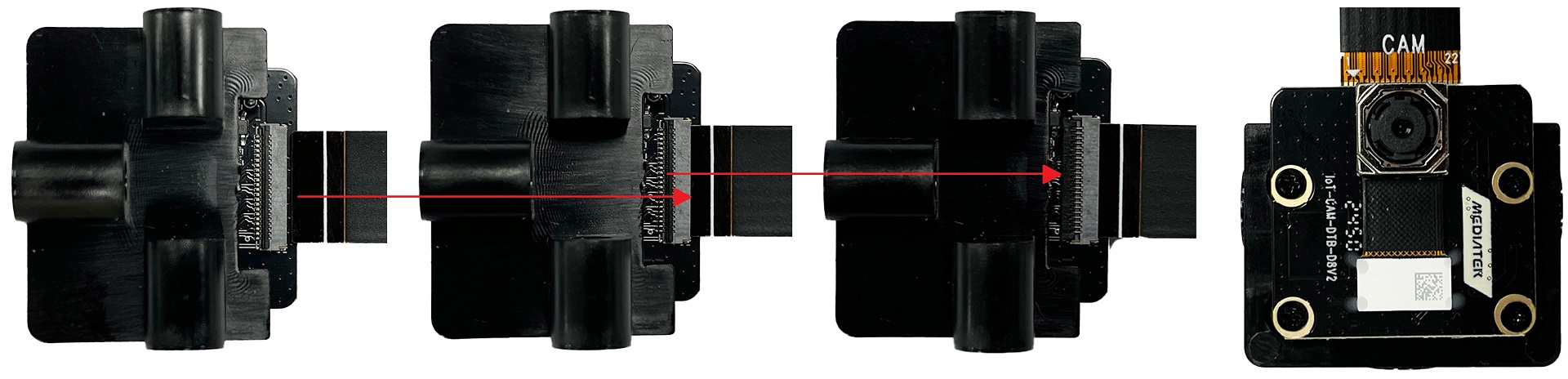
Camera Board FPC Installation
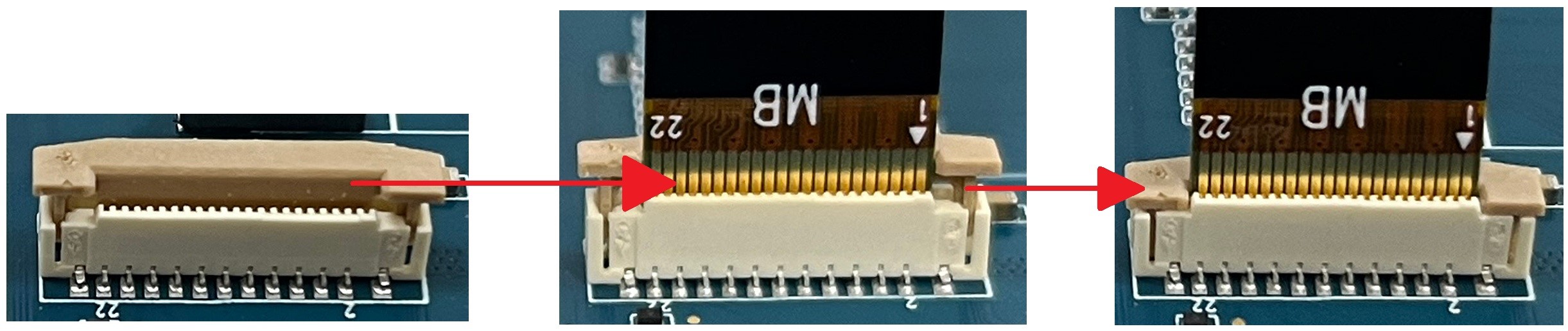
Genio 520/720-EVK FPC Installation
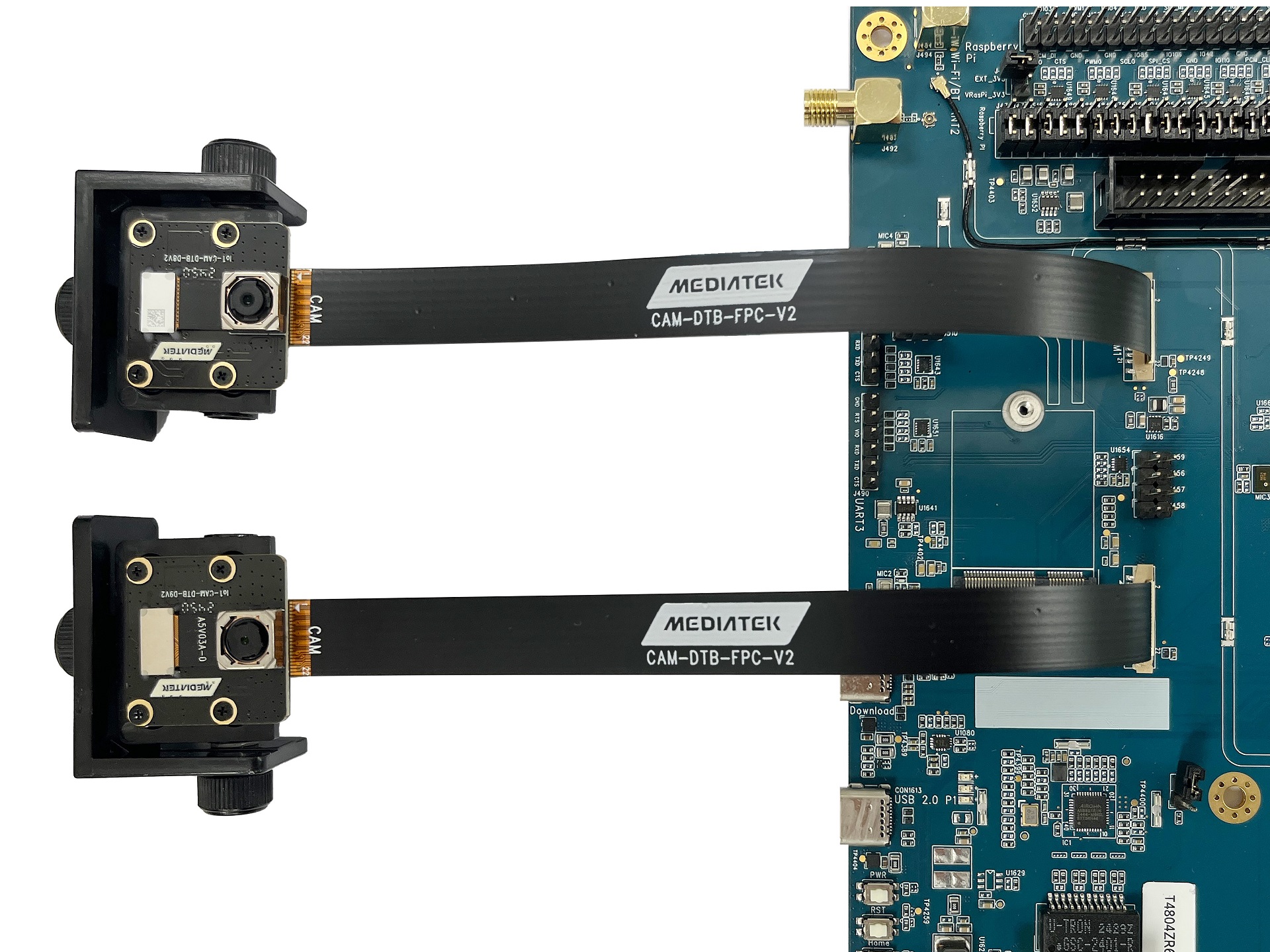
Genio 520/720-EVK and Camera Board Connection
Select Camera Device Tree Blob Overlay
The camera is inactive by default. The kernel must load a specific device tree blob overlay to enable the camera. Please refer to the bl33 (u-boot) section for more details.
Platform |
CSI0 |
CSI1 |
DTBO |
Usage |
|---|---|---|---|---|
Genio 520/720-EVK |
OV5640 |
x |
camera-ov5640-csi0-std.dtbo |
Enable 2-lane CAM-DTB-D9 w/ OmniVision OV5640 on CAM0 using standard V4L2 driver |
Genio 520/720-EVK |
x |
OV5640 |
camera-ov5640-csi1-std.dtbo |
Enable 2-lane CAM-DTB-D9 w/ OmniVision OV5640 on CAM1 using standard V4L2 driver |
Genio 520/720-EVK |
OV5640 |
OV5640 |
camera-ov5640-dual-std.dtbo |
Enable 2-lane CAM-DTB-D9 w/ OmniVision OV5640 on CAM0 and CAM1 using standard V4L2 driver |
genio-flash --list-dtbo
List of available DTBO:
...
camera-ov5640-csi0-std.dtbo
camera-ov5640-csi1-std.dtbo
camera-ov5640-dual-std.dtbo
...
genio-flash --load-dtbo camera-ov5640-csi0-std.dtbo # Single YUV camera on CAM0
genio-flash --load-dtbo camera-ov5640-csi1-std.dtbo # Single YUV camera on CAM1
genio-flash --load-dtbo camera-ov5640-dual-std.dtbo # Dual YUV camera on CAM0 and CAM1
Warning
Please select the DTBO according to the CSI slot to which the camera sensor is connected.
For example, if the camera is connected to the CAM0 slot, please load the dtbo camera-ov5640-csi0-std.dtbo.
Otherwise, the camera initialization will fail.
Supported Formats and Sizes
Platform |
Sensor |
Stream Type |
Size |
Frame rate |
Format |
MIPI Lanes |
|---|---|---|---|---|---|---|
Genio 520/720-EVK |
OmniVision OV5640 |
Preview |
1920x1080 |
30 |
YUYV |
2 |
Note
The supported format, resolution, and frame rate depend on the capabilities of the sensor and SoC.
Media Device
The media device represents the internal topology of a media system like ISP. Topology settings, including links, pads, and entities, can be configured through the media device. Therefore, the first step is to find the target media device node.
export MEDIA_DEV=$(v4l2-ctl -z platform:$(basename `find /sys/bus/platform/devices/ -name "*seninf-top"`) --list-devices | grep media)
echo ${MEDIA_DEV}
/dev/media1
Warning
The assigned node number for the media device may vary depending on the sequence of the probing process during the boot-up phase. As such, it is crucial to ensure the accuracy of the media device node before using the camera.
Video Device
The video device is the interface for users to obtain the images. On Genio 520/720-EVK, they are called 1a09[2-7]000\.camsv[2-7] video stream.
media-ctl is a useful tool to list video devices.
declare -a VIDEO_DEV=($(for i in `find /sys/bus/platform/devices/ -name "*camsv*" | sort`; do media-ctl -d ${MEDIA_DEV} --entity "`basename $i` video stream" ; done))
echo ${VIDEO_DEV[*]}
/dev/video5 /dev/video6 /dev/video7 /dev/video8 /dev/video9 /dev/video10
Warning
The assigned node number for the video device may vary depending on the sequence of the probing process during the boot-up phase. As such, it is crucial to ensure the accuracy of the video device node before using the camera.
Launch Camera
The initial step is to link all the necessary components within the media device. The structure of the YUV camera pipeline is quite straightforward. It consists of only three components: the sensor, SENINF, and CAMSV.
media-ctl -d ${MEDIA_DEV} -l "'ov5640 7-003c':0 -> 'seninf-0':0 [1]"
media-ctl -d ${MEDIA_DEV} -l "'seninf-0':1 -> '1a092000.camsv2':0 [1]"
The second step is to assign the correct format and size to each component within the camera pipeline.
media-ctl -d ${MEDIA_DEV} -V "'ov5640 7-003c':0 [fmt:YUYV8_1X16/1920x1080 field:none]"
media-ctl -d ${MEDIA_DEV} -V "'seninf-0':1 [fmt:YUYV8_1X16/1920x1080 field:none]"
media-ctl -d ${MEDIA_DEV} -V "'1a092000.camsv2':1 [fmt:YUYV8_1X16/1920x1080 field:none]"
Lastly, to activate the camera, users can use v4l2-ctl, gst-launch-1.0, or other V4L2 applications.
Use
v4l2-ctlv4l2-ctl -d ${VIDEO_DEV[0]} --set-fmt-video=width=1920,height=1080,pixelformat=YUYV --stream-mmap --stream-count=10 --stream-to=/tmp/serdes_vc0.yuv --verboseUse
gst-launch-1.0gst-launch-1.0 v4l2src device=${VIDEO_DEV[0]} ! video/x-raw,width=1920,height=1080,format=YUY2 ! v4l2convert output-io-mode=dmabuf-import ! video/x-raw,width=640,height=480 ! waylandsink sync=false
Note
To use MediaTek video codec and MDP hardware, users MUST load video.dtbo. For more details, please refer to Genio 720-EVK Video Codec.
Multi-Camera Support
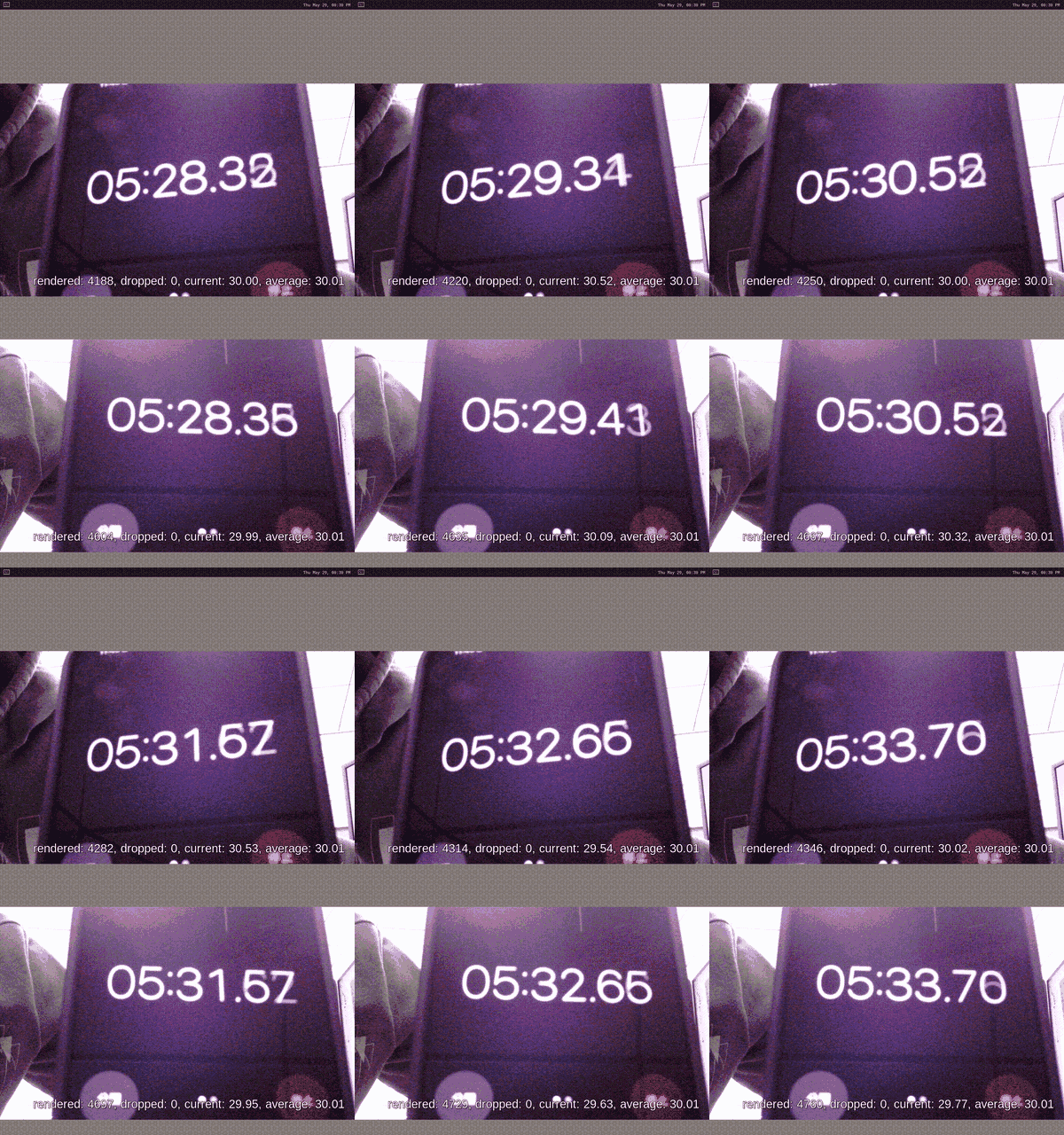
If you connect two camera D9 daughter boards to the Genio 520/720-EVK, you can launch two cameras simultaneously. After loading the dual OV5640 camera DTBO, use the following commands to launch the cameras.
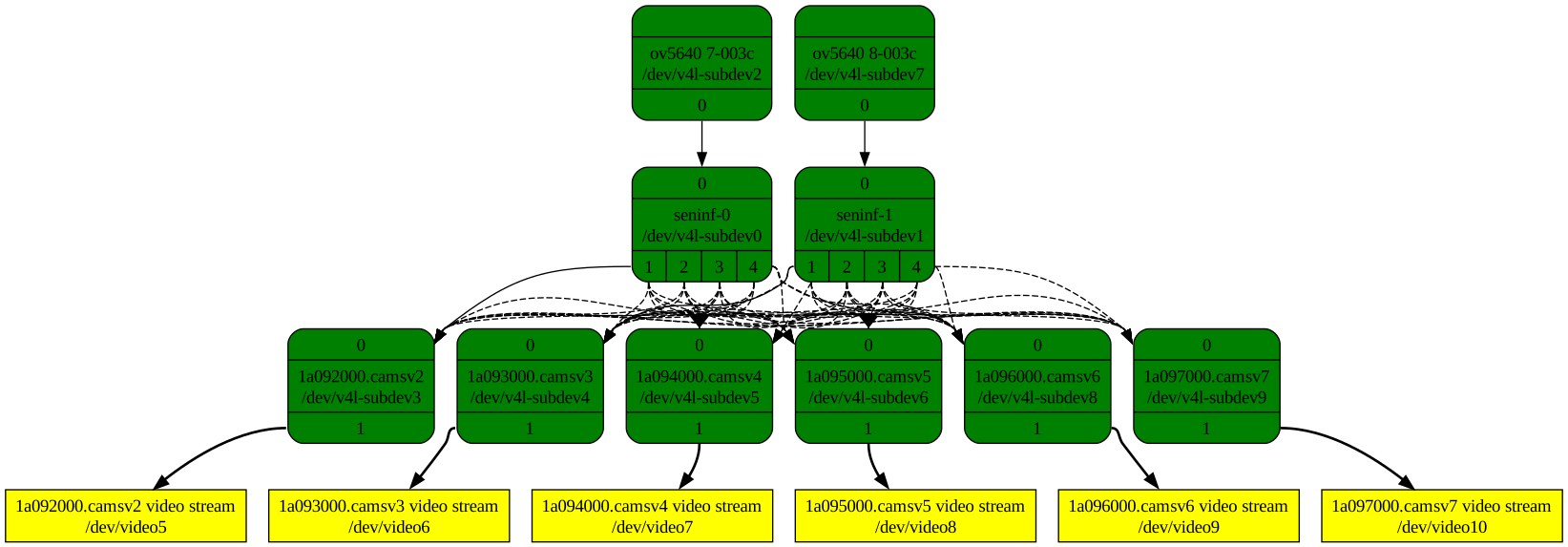
The media graph of camera subsystem with dual cameras
Configure the links, pads, and entities of the media device.
# MIPI-CSI CAM0 (Use camsv2)
media-ctl -d ${MEDIA_DEV} -l "'ov5640 7-003c':0 -> 'seninf-0':0 [1]"
media-ctl -d ${MEDIA_DEV} -l "'seninf-0':1 -> '1a092000.camsv2':0 [1]"
media-ctl -d ${MEDIA_DEV} -V "'ov5640 7-003c':0 [fmt:YUYV8_1X16/1920x1080 field:none]"
media-ctl -d ${MEDIA_DEV} -V "'seninf-0':1 [fmt:YUYV8_1X16/1920x1080 field:none]"
media-ctl -d ${MEDIA_DEV} -V "'1a092000.camsv2':1 [fmt:YUYV8_1X16/1920x1080 field:none]"
# MIPI-CSI CAM1 (Use camsv3)
media-ctl -d ${MEDIA_DEV} -l "'ov5640 8-003c':0 -> 'seninf-1':0 [1]"
media-ctl -d ${MEDIA_DEV} -l "'seninf-1':1 -> '1a093000.camsv3':0 [1]"
media-ctl -d ${MEDIA_DEV} -V "'ov5640 8-003c':0 [fmt:YUYV8_1X16/1920x1080 field:none]"
media-ctl -d ${MEDIA_DEV} -V "'seninf-1':1 [fmt:YUYV8_1X16/1920x1080 field:none]"
media-ctl -d ${MEDIA_DEV} -V "'1a093000.camsv3':1 [fmt:YUYV8_1X16/1920x1080 field:none]"
Launch the camera streams through GStreamer.
# MIPI-CSI CAM0 (Use camsv2)
gst-launch-1.0 v4l2src device=${VIDEO_DEV[0]} ! video/x-raw,width=1920,height=1080,format=YUY2 ! v4l2convert output-io-mode=dmabuf-import ! video/x-raw,width=1280,height=720 ! fpsdisplaysink video-sink=waylandsink sync=false &
# MIPI-CSI CAM1 (Use camsv3)
gst-launch-1.0 v4l2src device=${VIDEO_DEV[1]} ! video/x-raw,width=1920,height=1080,format=YUY2 ! v4l2convert output-io-mode=dmabuf-import ! video/x-raw,width=1280,height=720 ! fpsdisplaysink video-sink=waylandsink sync=false &
You will see two camera streams displayed on the Weston desktop.
Show multi-camera through GStreamer