Camera Integration (V4L2 Sensor)
In this section, we will demonstrate how to integrate a new sensor into Genio 520/720-EVK.
1. Sensor Driver Enablement
The sensor driver should follow the Video 4 Linux 2 framework and function as a V4L2 sub-device. The implementation of the driver should include the necessary sub-device callbacks and the media entity initialization. For more details, please refer to V4L2 sub-devices.
For the in-tree sensor driver, the kernel driver configuration can be set in meta-mediatek-bsp/recipes-kernel/linux/linux-mtk/mt8391-evk.cfg.
# Set the config to y (built-in) or m (module)
CONFIG_VIDEO_OV5640=m
2. Device Tree Configuration
The Device Tree (DT) defines the physical connection between the sensor and the Genio 720 SoC (I2C for control, MIPI CSI for data, GPIOs for power/reset). We will create a Device Tree Overlay (DTBO) or modify the board DTS. This guide assumes usage of the Genio 720 EVK. For the pin definitions of the camera sockets on the Genio 520/720-EVK, please refer to Camera Pin Definition.
Reference Files
Common Pinmux: camera-common-std.dtsi (Defines regulators and pin states).
Sensor Implementation: camera-ov5640-dual-std.dts (Defines specific sensor nodes).
Step-by-Step Configuration
Include Common Definitions:
Ensure your DTS file includes the common camera definitions to utilize pre-defined pin controls and regulators.
camera-common-std.dtsidefines the necessary regulators, power enablement pins, and clock pins used on theCAM0andCAM1camera sockets of Genio 520/720-EVK.#include "camera-common-std.dtsi"
Define the Sensor Node:
Locate the I2C bus where the camera is connected. On Genio 520/720-EVK, the
CAM0andCAM1sockets usei2c7andi2c8. Below is a template for adding a sensor (e.g., ov5640) toi2c7.fragment@3 { target = <&i2c7>; __overlay__ { clock-frequency = <400000>; ov5640@3c { /* 1. Driver Matching */ compatible = "ovti,ov5640"; /* vendor,sensor-model e.g., "ovti,ov5640" */ reg = <0x3c>; /* I2C Address */ /* 2. Pin Control of Power Pins and Clock Pins */ pinctrl-names = "default"; pinctrl-0 = <&cam0_default_pins_pwr_en &cam0_default_pins_mclk>; /* 3. Clocks */ clocks = <&vlp_cksys_clk CLK_VLP_CK_CAMTG0_SEL>; clock-names = "xclk"; assigned-clocks = <&vlp_cksys_clk CLK_VLP_CK_CAMTG0_SEL>; assigned-clock-parents = <&topckgen_clk CLK_TOP_UNIVPLL_192M_D8>; /* 4. Power Management (GPIOs & Regulators) */ DOVDD-supply = <&cam_vcam_3v3_en>; AVDD-supply = <&cam_vcam_3v3_en>; DVDD-supply = <&cam0_pdn>; /* 5. (Optional) Adjust device-specific GPIOs based on your schematic */ powerdown-gpios = <&pio 15 GPIO_ACTIVE_HIGH>; reset-gpios = <&pio 11 GPIO_ACTIVE_LOW>; /* 6. Port Topology (Sensor Output) */ port { sensor0_out: endpoint { remote-endpoint = <&seninf_csi_port_0_in>; /* Set to SoC Rx endpoint */ data-lanes = <1 2>; /* Adjust based on hardware lanes used */ }; }; }; }; };
Configure MIPI CSI Receiver:
You MUST link the Genio 720 internal CSI-RX node to the sensor. The property
remote-endpointof the Tx and Rx ports should be set to each other.fragment@4 { target = <&seninf_csi_port_0>; __overlay__ { status = "okay"; ports { port@0 { seninf_csi_port_0_in: endpoint { remote-endpoint = <&sensor0_out>; /* Set to sensor Tx endpoint */ data-lanes = <1 2>; /* Must match sensor definition */ }; }; }; }; };
By default, the MIPI CSI interface is disabled in the SoC DTSI, so you also need to enable the MIPI CSI interface by setting
status = "okay".fragment@5 { target = <&mipi_csi0>; __overlay__ { status = "okay"; num-lanes = <2>; /* Must match sensor definition */ }; };
3. Configure Media Topology
Once the system boots with the new DTBO and the drivers probe successfully, the Linux Media Controller framework manages the pipeline.
Verify Nodes:
Use
v4l2-ctlto check if the media device exists. In the example below, the camera media device is/dev/media1with the namemtk-seninf. The camera video devices are/dev/video5~10with the namemtk-camsv, which are used to capture the image.v4l2-ctl --list-devices mtk-seninf (platform:1a004000.seninf-top): /dev/media1 mtk-camsv (platform:1a092000.camsv2): /dev/video5 mtk-camsv (platform:1a093000.camsv3): /dev/video6 mtk-camsv (platform:1a094000.camsv4): /dev/video7 mtk-camsv (platform:1a095000.camsv5): /dev/video8 mtk-camsv (platform:1a096000.camsv6): /dev/video9 mtk-camsv (platform:1a097000.camsv7): /dev/video10Check Media Topology:
Use
media-ctlto inspect the connections. You should see a link from your sensor entity to theseninf(Sensor Interface) entity.media-ctl -d /dev/media1 --print-topology # Print the device topology media-ctl -d /dev/media1 --print-dot # Print the device topology as a dot graph
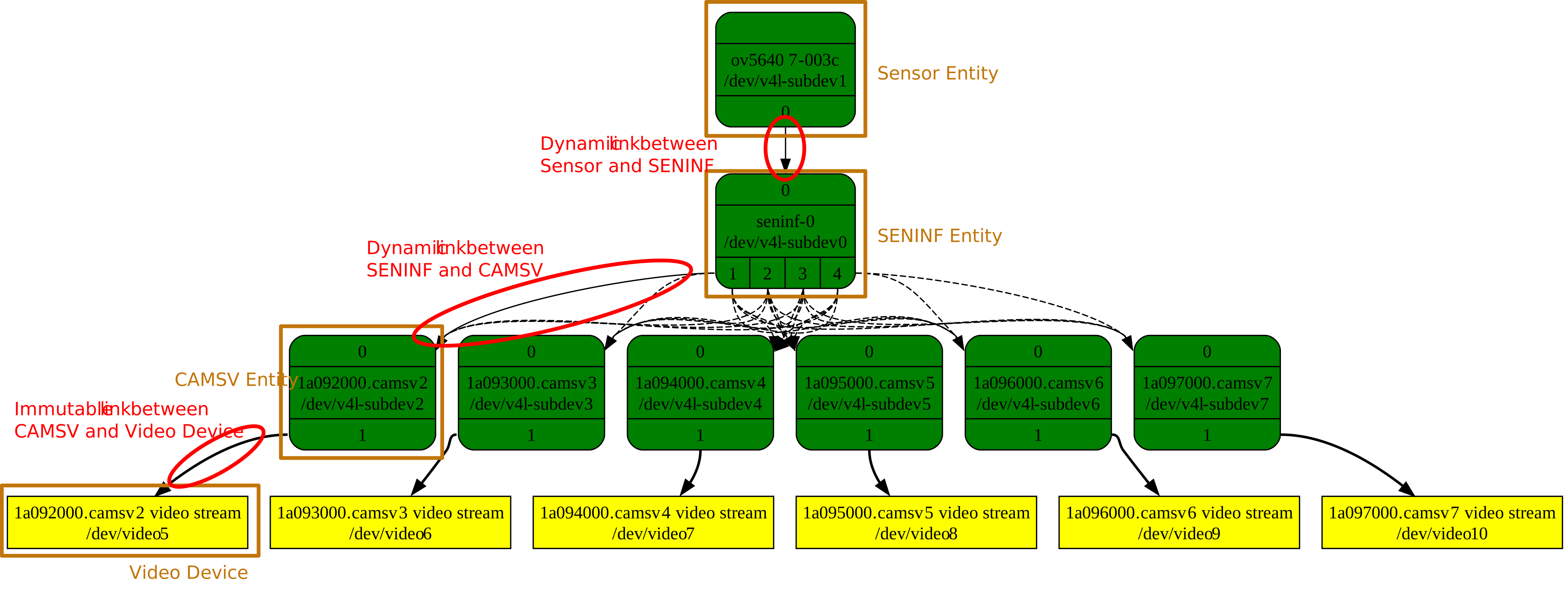
Media Topology Graph of Single OmniVision OV5640 sensor and SoC
Configure Links and Formats:
Before streaming, you MUST configure the resolution and format on the links. Replace
width,height, andformat(e.g., YUYV, RGB, RAW10) according to your sensor’s capability.A link with a dashed style signifies that the link is disabled and the two entities are not connected. If a link is enabled, it will be displayed in bold style, indicating an active connection.
media-ctl -d /dev/media1 -l "'ov5640 7-003c':0 -> 'seninf-0':0 [1]"      # Enable the link between "ov5640 7-003c" pad 0 and "seninf-0" pad 0
media-ctl -d /dev/media1 -l "'seninf-0':1 -> '1a092000.camsv2':0 [1]"    # Enable the link between "seninf-0" pad 1 and "1a092000.camsv2" pad 0
After enabling all the required links, the next step is to configure the format and the size for each pad. The format should be set on the source pad, and the sink pad will automatically adopt the same setting.
In the following example, the output from the OmniVision OV5640 sensor is in the YUYV format with a size of 1920x1080 pixels. Both the SENINF and the CAMSV should be set to the same format and size as the sensor’s.
media-ctl -d /dev/media1 -V "'ov5640 7-003c':0 [fmt:YUYV8_1X16/1920x1080 field:none]"     # Set YUYV/1920x1080 to "ov5640 7-003c" pad 0
media-ctl -d /dev/media1 -V "'seninf-0':1 [fmt:YUYV8_1X16/1920x1080 field:none]"          # Set YUYV/1920x1080 to "seninf-0" pad 1
media-ctl -d /dev/media1 -V "'1a092000.camsv2':1 [fmt:YUYV8_1X16/1920x1080 field:none]"   # Set YUYV/1920x1080 to "1a092000.camsv2" pad 1
4. Launch Camera And Check Correctness
To check whether the camera is working correctly, you can open the video device node and examine its behavior.
Here’s a sample bash command that uses the v4l2-ctl tool to open the video device node and retrieve frames from the camera.
v4l2-ctl -d /dev/video5 --set-fmt-video=width=1920,height=1080,pixelformat=YUYV --stream-mmap --verbose
The Sensor Interface (SENINF) is responsible for receiving the sensor data, decoding the MIPI CSI-2 packets, and dispatching the data to the CAMSV. Some image stream issues (e.g., frame dropping, jittering, noise, abnormal color patterns) could be indicative of underlying issues within the SENINF. Even if the image stream looks normal, potential signal instability might still exist. Therefore, it’s necessary to check the SENINF status when the camera pipeline is on.
There is a debugfs node for users to inspect the status of the SENINF. If the SENINF receives the sensor data correctly, the status should be like the below sample.
cat /sys/devices/platform/soc/1a004000.seninf-top/status

[seninf-0] port 0 intf 0 test 0 cphy 0 lanes 2     // PHY Port Information
source ov5640 7-003c flags 0x1                     // Sensor Source
csi2 irq_stat 0x00000324                           // IRQ Status
...
[0] vc 0x0 dt 0x1e mux 1 cam 2                     // Virtual Channel and Data Type
        ...
        width 3840 height 1080                     // Width and Height
        ...
The IRQ status is a crucial indicator when verifying the SENINF’s status. An IRQ status with the value 0x324 indicates that the SENINF has received the Start/End frame, validated the CRC (Cyclic Redundancy Check), and detected no ECC (Error Correction Code) errors. In addition, it’s important to check that the width and the height displayed match the target sensor size. It means that the SENINF has correctly decoded the image data and size.
The width parameter represents the horizontal size of each line in the image, which is also known as the H size. The H size is the value obtained by multiplying the image width and the Bpp (Bytes per pixel). In the given example, the width 3840 is 1920 (image width) x 2 (Bytes per pixel required for the YUV422 format).
If the status node doesn’t show any information, it indicates that the camera pipeline is inactive. If the status node shows incorrect values, one potential cause is a MIPI timing mismatch. In this situation, please refer to 5. (Optional) MIPI CSI-2 Timing for detailed instructions and steps to set the MIPI timing parameters.
5. (Optional) MIPI CSI-2 Timing
MIPI CSI-2 is a high-speed protocol primarily used for real-time imaging and video applications. The MIPI D-PHY physical standard includes several specific timing parameters that govern the behavior of transmission to ensure reliability and correctness. For the detailed timing parameters, please refer to the MIPI CSI-2 specification.
The user can set two MIPI CSI-2 timing parameters, THS-TRAIL and THS-SETTLE, in the device tree to make the transmission stable. The value of the parameters is determined by the MIPI CSI-2 clock rate.
Timing Parameter |
Spec |
Calculation |
Property Name |
|---|---|---|---|
THS-TRAIL |
DPHY: max (8 x UI, 60 ns + 4 x UI ) < THS-TRAIL |
THS-TRAIL = clock_period x (hs_trail_parameter + 1) |
hs_trail_parameter |
THS-SETTLE |
DPHY: 85 ns + 6 x UI < THS-SETTLE < 145 ns + 10 x UI |
THS-SETTLE = clock_period x (dphy_settle_delay_dt + 1) |
dphy_settle_delay_dt |
For example, if the MIPI CSI-2 clock rate is 499.2MHz, the corresponding timing parameters should satisfy the following specifications.
clock_freq = 499.2 MHz
clock_period = 1 / clock_freq = 2 ns
UI = clock_period / 2 = 1 ns
THS-TRAIL
THS-TRAIL > max (8 x UI, 60 ns + 4 x UI)
THS-TRAIL > 64 ns
2 ns x (hs_trail_parameter + 1) > 64 ns
hs_trail_parameter > 31
THS-SETTLE
85 ns + 6 x UI < THS-SETTLE < 145 ns + 10 x UI
91 ns < THS-SETTLE < 155 ns
91 ns < 2 ns x (dphy_settle_delay_dt + 1) < 155 ns
44.5 < dphy_settle_delay_dt < 76.5
After the calculation, fill in the properties in the DT overlay with the values:
fragment@5 {
        target = <&mipi_csi0>;
        __overlay__ {
                dphy_settle_delay_dt = <0x46>;
                hs_trail_parameter = <0x34>;
        };
};
In addition, it’s necessary to consider the timing of MIPI CSI Tx (i.e., the camera sensor). Sometimes the SoC cannot be compatible with the sensor even if the SoC timing parameters satisfy the MIPI CSI-2 specification.