Genio 520/720 EVK Demo Requirements
This demonstration kit is very flexible and can be setup in various configurations, with software support for Yocto or Android. However for the purpose of this Quick Start Guide, a specific configuration is chosen with the following conditions:
IoT Yocto software build
D9 Camera Board enabled
Additional Items Needed for Quick Start Guide Demo
To support the demo, the following additional items are needed.
Two USB Cables (USB-A to USB-C)
External PC for loading flash and interacting via command prompt
Setup PC Environment
Install the Genio Tools on your Linux or Windows PC.
Note
The Genio Tools version should be at least 1.7.
Kit Hardware Installation
Insert the D9 Camera Board into the
CAM0port on the Genio 520/720-EVK. Please refer to Connect the Camera to the EVK section for more details.
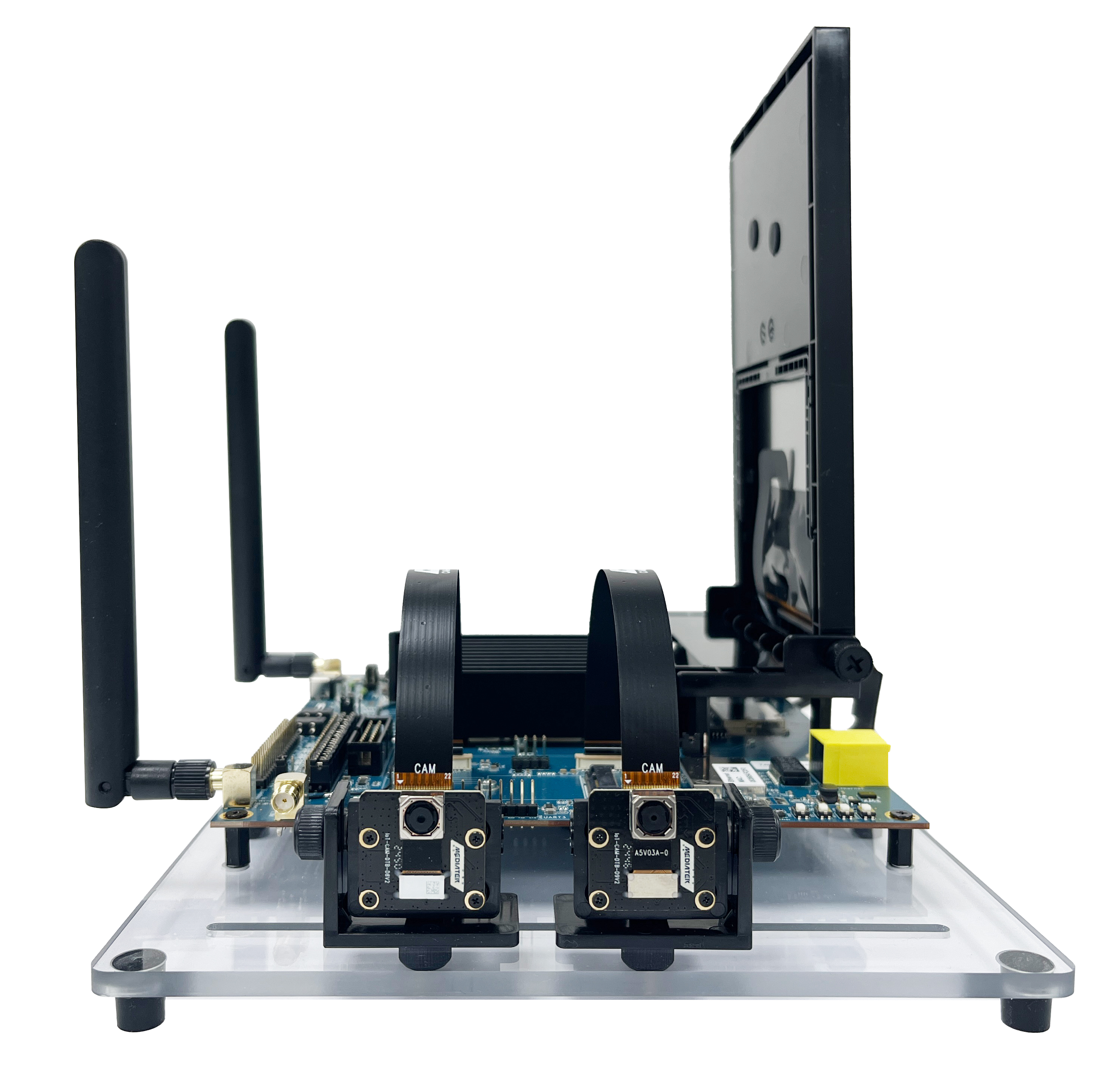
Camera Board Insertion
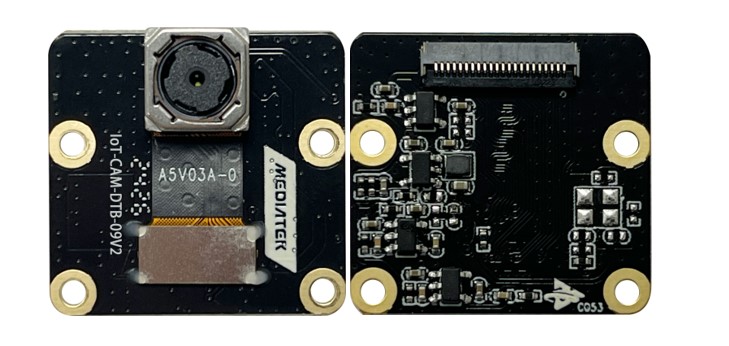
Camera Board D9
Note
The Camera Board Insertion image shows D9 Camera Board inserted into CAM0 port and D8 Camera Board inserted into CAM1 port; however, only D9 will be used in the following demos.
Connect a USB cable to connector labeled
UART0as shown in the image USB Port Locations below:
This requires installation of the Google Android USB driver as outlined in the Setup PC Environment section. If using Windows, open Device Manager and confirm that the driver appears under Android Device \ Android Bootloader Interface.
Connect a second USB cable to
USB 3.2 P0as shown in the image USB Port Locations below:
This requires installation of the FTDI VCP USB driver as outlined in the Setup PC Environment section. If using Windows, open Device Manager and confirm that the driver appears under Ports (COM & LPT) \ USB Serial Port (COMx), where x is the port assigned by your system.
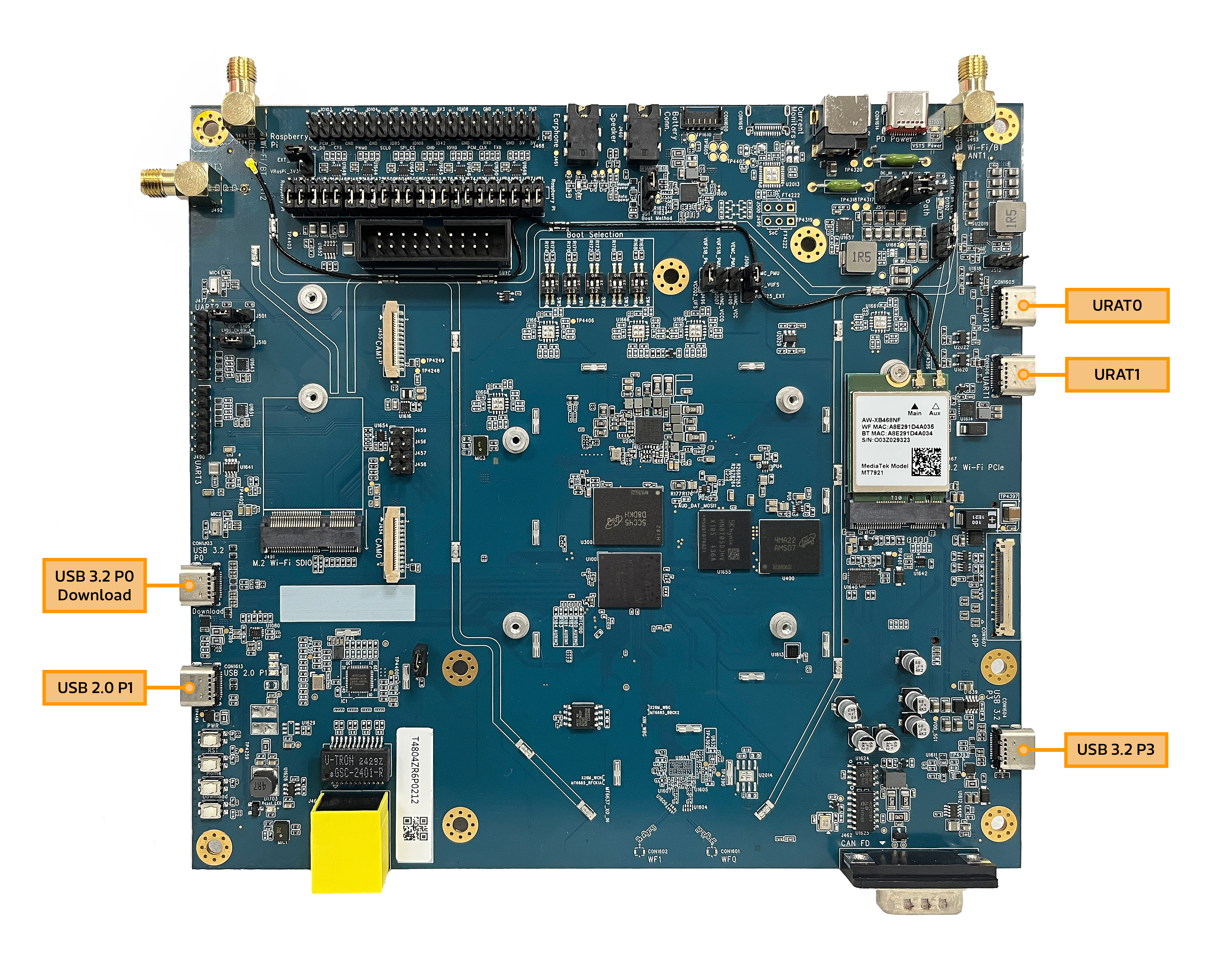
USB Port Locations
Further details regarding both USB drivers can be found in the flash trouble-shooting section.
Plug AC/DC power adapter into the connector.
Connect to the Serial Console
Setup the serial port for viewing debug output and interacting with the kit through a command line interface.
Check Device Manager that the USB COM port appears as a UART device under COM Ports
Configure your installed serial terminal emulator to use the serial port corresponding to the devices UART0 and operating with the baud rate set to 921600.
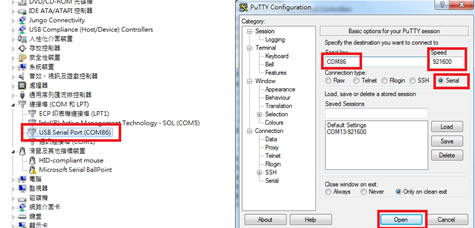
Example with Putty
Use dmesg to determine which USB serial ports have recently been connected:
dmesg | grep tty [299443.861514] usb 2-4.2.1: FTDI USB Serial Device converter now attached to ttyUSB0In this instance, the serial terminal is
ttyUSB0, which will be present under/dev/Connect to the device using a baud rate of
921600, for example, with Picocom:picocom -b 921600 /dev/ttyUSB0
Flash the Software
This guide shows how to “flash” (write) the demo image into the non-volatile flash memory of the main motherboard.
The flashing process is performed through the USB 3.2 P0 connection.
In order to write the on-board storage with Genio Tools, you need to set the IoT SoC in download mode, which allows Genio Tools to transfer a download agent binary to the SRAM of SoC.
The download agent then provides a fastboot interface for subsequent image transfer and storage write operations.
Download the pre-built private board image to your local PC.
Here we select Boot from UFS storage. The image should be built using
genio-720-evk-ufsconfig.Board
Boot Config
Download Link
MD5 Checksum
UFS boot
4bff81fa363684ae457a55ff680d2a10
Check the Boot Selection to ensure that the DIP switch and jumper are set correctly.
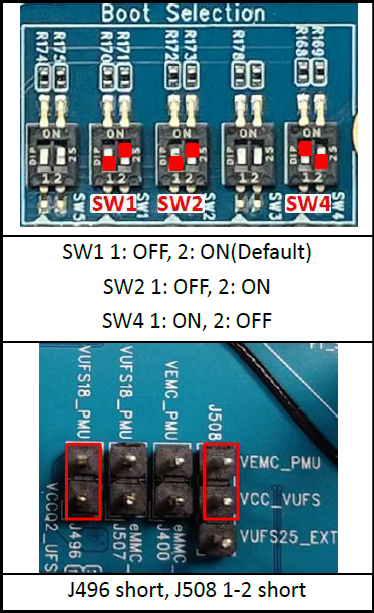
Boot from UFS Storage
Unzip the image.
Note
Avoid having a long path name by installing to a root folder and shortening the file name if necessary, for example C:\\evk.
Open a Windows cmd window (to enter commands)
Change working folder to the image directory before running the
genio-flashcommands:
cd C:\evk
Flash the image using the overlay which enables both cameras, which enables before flashing the board, check if there are certain board features you’d like to enable:
genio-flash --load-dtbo camera-ov5640-csi0-std.dtbo --load-dtbo display-dsi.dtbo --load-dtbo apusys.dtbo --load-dtbo video.dtbo
Once you see the
Looking for a MediaTek SoC ...prompt, start the process to boot the board in flash download mode.
Press and keep pressing the
Downloadbutton.Press and release the
RSTbuttonHold the
Downloadbutton until you see the logErasing 'mmc0'message, as shown below:
Reset the board to enter download mode
You should see flashing process started after releasing the volume up button. A typical successful log looks something like this:
Genio Tools: v1.7.0
Yocto Image:
        name:     Rity Demo Image (rity-demo-image)
        distro:   Rity Demo Layer 25.1-release (rity-demo)
        codename: scarthgap
        machine:  genio-720-evk-ufs
        overlays: ['display-dsi.dtbo', 'apusys.dtbo', 'ufs.dtbo', 'video.dtbo', 'camera-ov5640-csi0-std.dtbo']

INFO:root:Continue flashing...
Looking for MediaTek SoC matching USB device 0e8d:0003
Opening COM13 using baudrate=115200
Connected to MediaTek SoC: hw_code[0x8189]
Sending bootstrap to address: 0x2001000
Jumping to bootstrap at address 0x2001000 in AArch64 mode
erasing mmc0
< waiting for any device >
Erasing 'mmc0'                                     (bootloader) request sz: 0x1dcb000000, real erase len: 0x0
OKAY [  0.260s]
… (shortened for brevity)
Rebooting                                          OKAY [  0.000s]
Finished. Total time: 0.000s
Note
The above command should be the only needed to flash the image with the configurations necessary in this Quick Start Guide. Further background and troubleshooting information including different command options are available in Flash Image to Board. A common problem is that the download does not start and simply keeps waiting for the device. More information is available in Missing “Yocto” Device Driver.
Once the kit boots up with the new flash image, debug log messages can be seen through UART0 in the Putty terminal window.
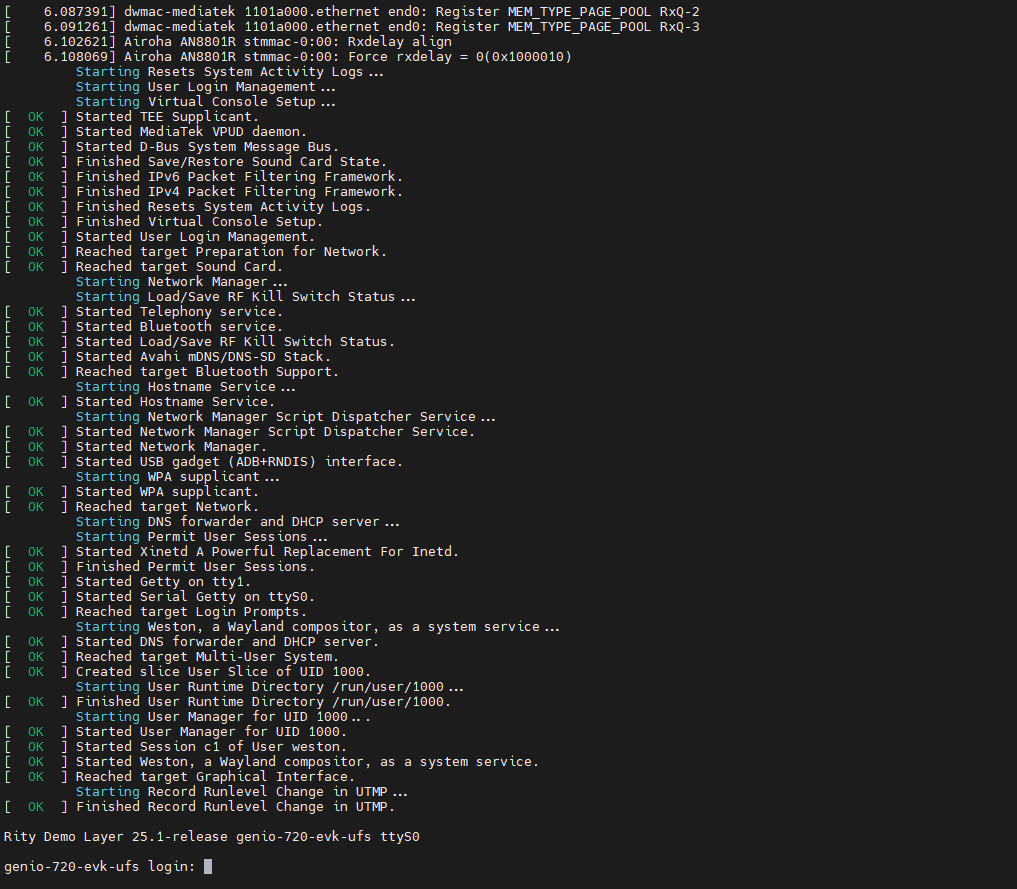
View of debug log messages appearing from UART0 upon board bootup
Verify the desktop boot screen appears on the display of the kit.
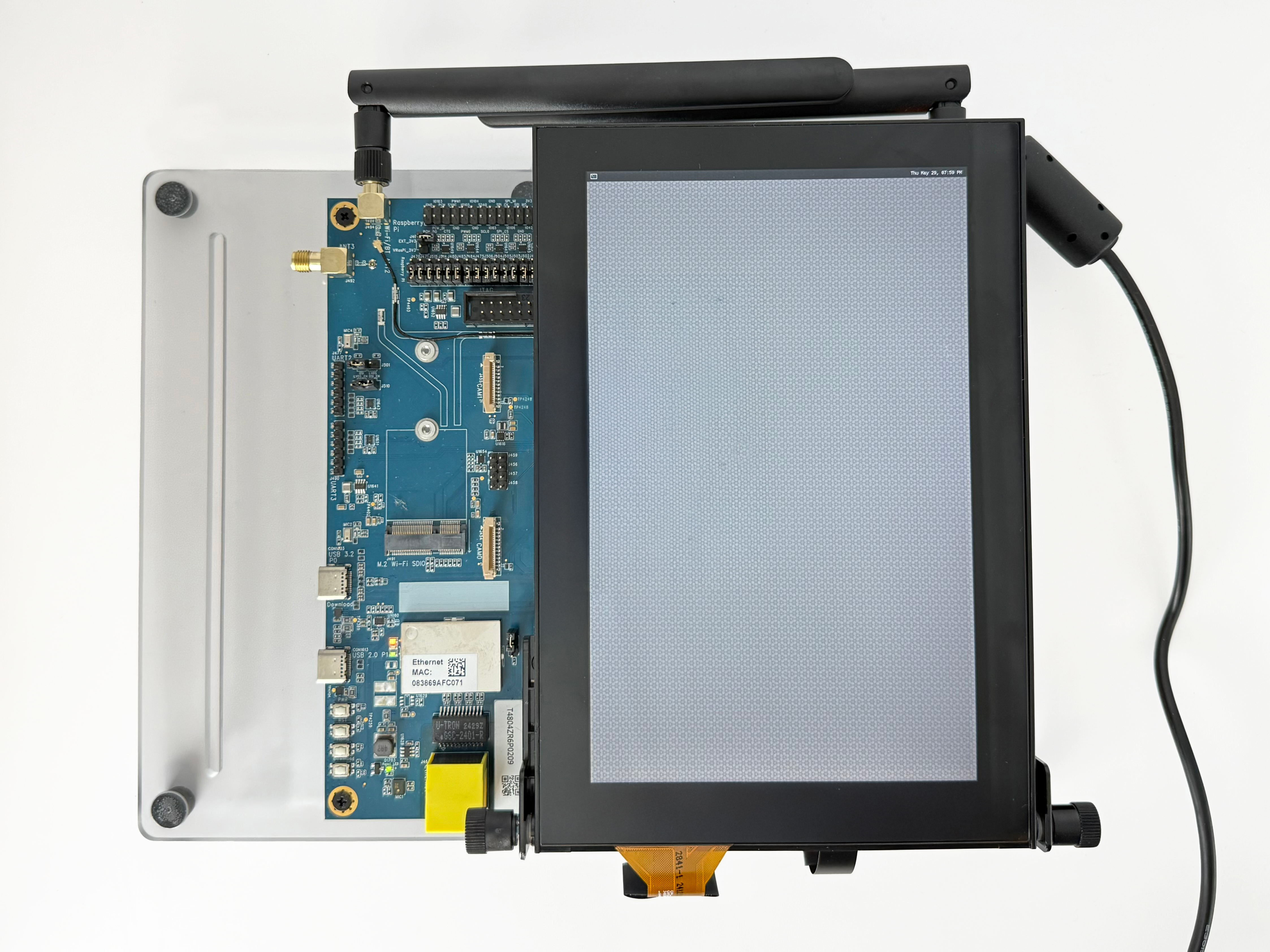
View of the desktop boot screen
Log into board through UART0 interface.
Once board has fully booted, a login prompt is sent across UART0 similar to that shown below.
genio-720-evk-ufs login:
Type
root, then enter, to log in.
NNStreamer Demos
NNStreamer is a set of GStreamer plugins that allow GStreamer developers to adopt neural network models, and neural network developers to manage neural network pipelines with their filters in a easy and efficient way.
Camera Setup
In order to demonstrate these features we first set up the camera.
The media device represents the internal topology of a media system like ISP. Topology settings, including links, pads, and entities, can be configured through the media device. Therefore, the first step is to find the target media device node.
export MEDIA_DEV=$(v4l2-ctl -z platform:$(basename `find /sys/bus/platform/devices/ -name "*seninf-top"`) --list-devices | grep media)
echo ${MEDIA_DEV}
The video device is the interface for users to obtain the images. On Genio 520/720-EVK, they are called 1a09[2-7]000\.camsv[2-7] video stream.
media-ctl is a useful tool to list video devices.
declare -a VIDEO_DEV=($(for i in `find /sys/bus/platform/devices/ -name "*camsv*" | sort`; do media-ctl -d ${MEDIA_DEV} --entity "`basename $i` video stream" ; done))
echo ${VIDEO_DEV[*]}
Launch Camera
First, to link all the necessary components within the media device.
media-ctl -d ${MEDIA_DEV} -l "'ov5640 7-003c':0 -> 'seninf-0':0 [1]"
media-ctl -d ${MEDIA_DEV} -l "'seninf-0':1 -> '1a092000.camsv2':0 [1]"
Second, to assign the correct format and size to each component within the camera pipeline.
media-ctl -d ${MEDIA_DEV} -V "'ov5640 7-003c':0 [fmt:YUYV8_1X16/1920x1080 field:none]"
media-ctl -d ${MEDIA_DEV} -V "'seninf-0':1 [fmt:YUYV8_1X16/1920x1080 field:none]"
media-ctl -d ${MEDIA_DEV} -V "'1a092000.camsv2':1 [fmt:YUYV8_1X16/1920x1080 field:none]"
Lastly, to activate the camera.
Use
gst-launch-1.0:gst-launch-1.0 v4l2src device=${VIDEO_DEV[0]} ! video/x-raw,width=1920,height=1080,format=YUY2 ! v4l2convert output-io-mode=dmabuf-import ! video/x-raw,width=640,height=480 ! waylandsink sync=false
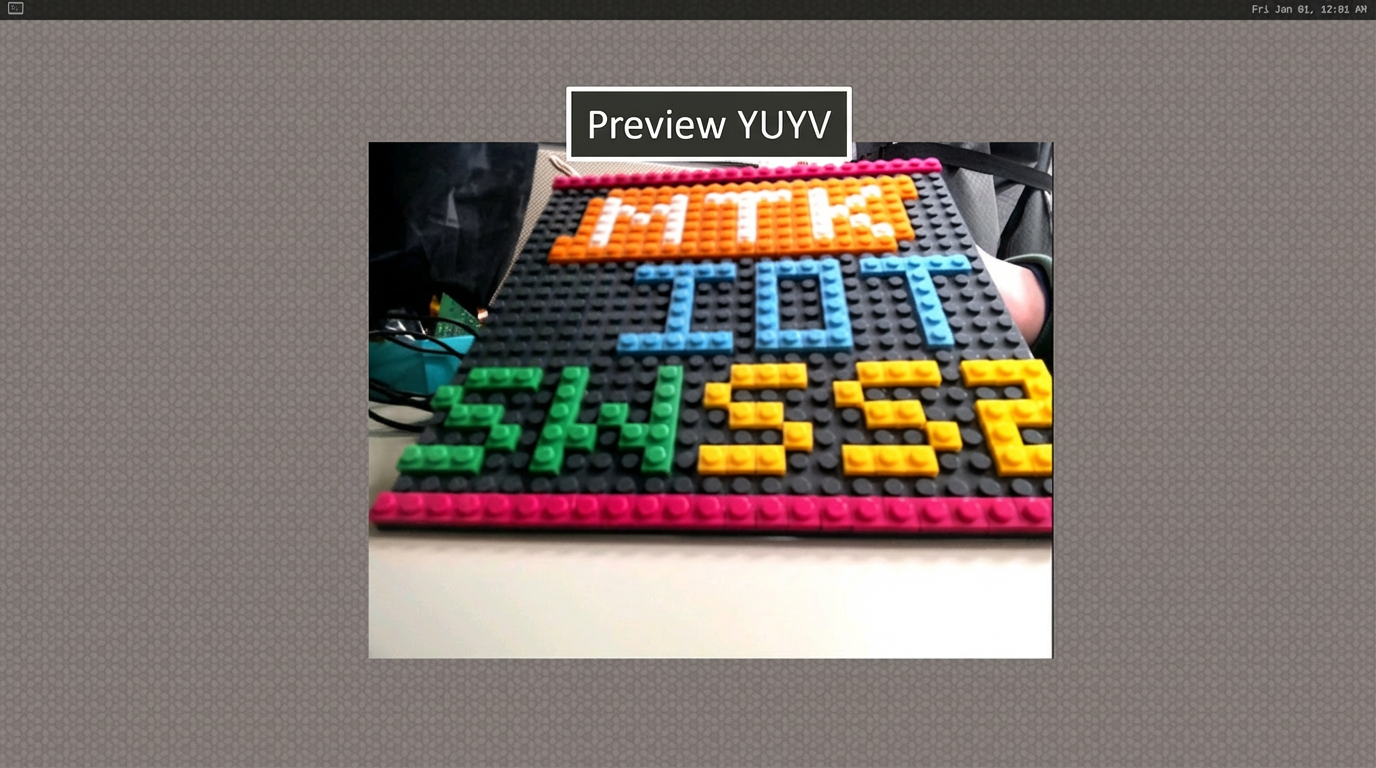
Show Preview stream on Weston
Before proceeding to the next demos, type CTRL+C to end this video stream.
Note
Further details about hardware operation, background theory, or troubleshooting can be found in the BSP User Guide - Launch Camera section.
NNStreamer Environment Setup
The following NNStreamer demos are run using a python script run_nnstreamer_example.py.
This script is configured using environment variables specifying which camera type to use, which mode to use, which processing engine to use, and the device node of your camera as determined above.
Set the following environment variables before running any of the following demos:
CAM_TYPE=yuvsensor_d9
MODE=1
ENGINE=stable_delegate
Find the device node of camera:
echo ${VIDEO_DEV[0]}
Setup the
CAMERA_NODE_ID:For example, the output of the command echo ${VIDEO_DEV[0]} is
/dev/video5, then set theCAMERA_NODE_ID=5.CAMERA_NODE_ID=5
Note
For details about the above variables, please refer to this page: NNStreamer.
Pose Detection
Set the APP variable so the script runs the proper demo. Then run the script.
APP=pose_estimation
python3 /usr/bin/nnstreamer-demo/run_nnstreamer_example.py --app $APP --cam_type $CAM_TYPE --cam $CAMERA_NODE_ID --engine $ENGINE --performance $MODE
A video stream from the camera should now be displayed on the screen with indicators similar to the below image added.
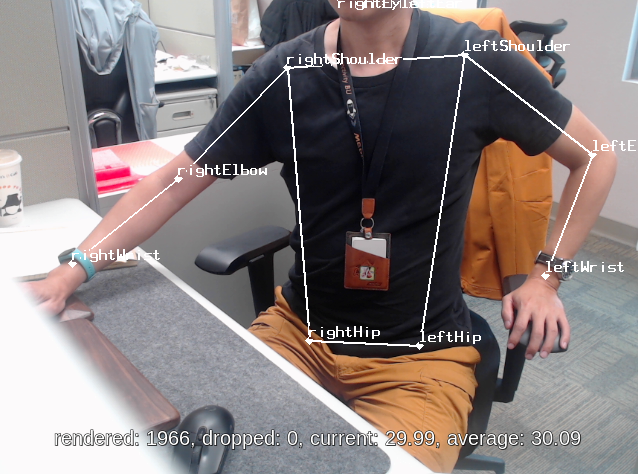
Before proceeding to the next demos, type CTRL+C to end this video stream.
CTRL+C
Face Detection
Set the APP variable so the script runs the proper demo. Then run the script.
APP=face_detection
python3 /usr/bin/nnstreamer-demo/run_nnstreamer_example.py --app $APP --cam_type $CAM_TYPE --cam $CAMERA_NODE_ID --engine $ENGINE --performance $MODE
A video stream from the camera should now be displayed on the screen with the face blocked out as shown in the below image.
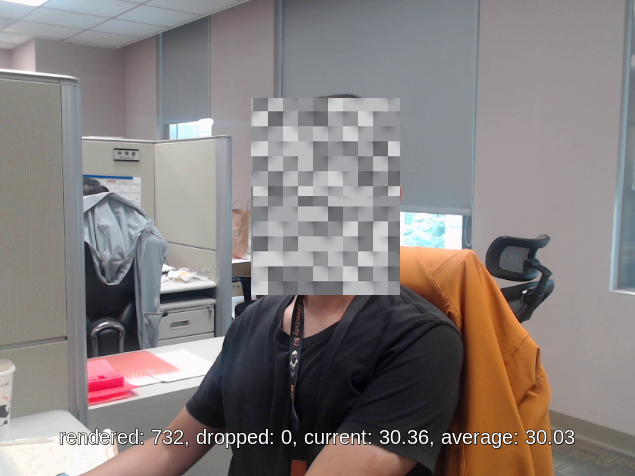
Before proceeding to the next demos, type CTRL+C to end this video stream.
CTRL+C
OpenGL ES Demos
On IoT Yocto, there are several OpenGL ES applications that can used to check that the GPU is running and well integrated within the Wayland/Weston system. In this section we introduce two GLES applications: weston-simple-egl and kmscube.
They both use the GPU to render content, but they have different approaches to creating their graphic windows.
Display a Rotating Cube
This is a simple GLES program demonstrating how to drive bare metal graphics without a compositor (Wayland), using DRM/KMS, GBM, and EGL for rendering content using OpenGL ES.
After having typed CTRL+C from the above step, you should see only the simple desktop window which shows the date and time in the upper right hand corner. This desktop graphic is being driven by the Weston service. In this demo, we will display a rotating cube by running the kmscube command. However kmscube will create its own window on which it renders content. So, before we launch kmscube, we must make sure that no other window system occupies the display. This means stopping the Weston process that drives the desktop.
Stop
westonservice if it already started.systemctl stop westonConfirm that the desktop disappears and you see only a dark screen on the HDMI monitor.
Launch
kmscubeand confirm that you can see a rotating cube as shown in below figure.kmscube
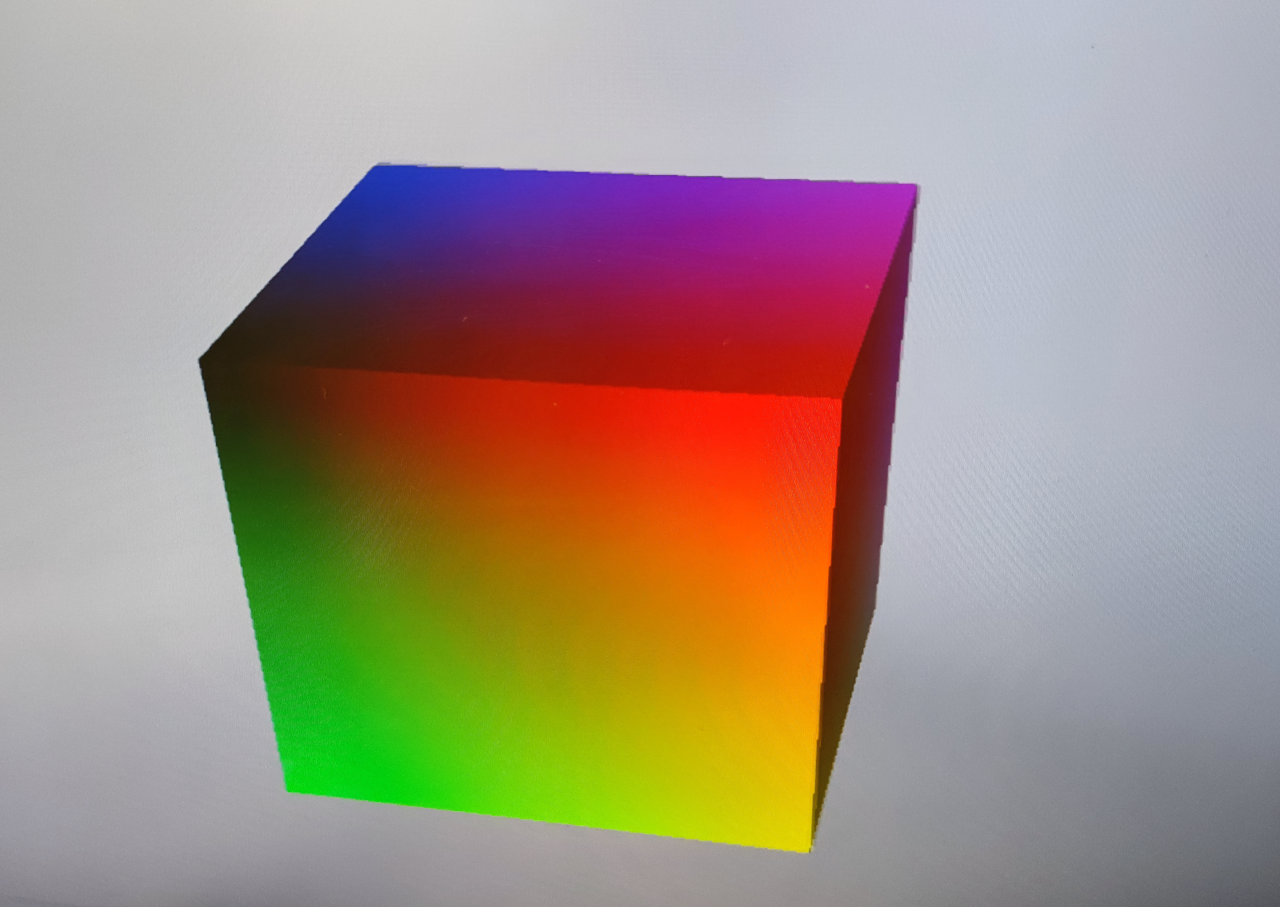
Screenshot of kmscube
Type
CTRL+Cto stop displaying the rotating cube.
Display a Rotating Triangle
This is a simple demonstration GLES program that draws a rotating colorized triangle on a transparent Wayland window. This program is not responsible for creating the window, and instead merely renders its content on an existing window which Weston creates. So, before launching it, we must start Weston.
Start
westonservice if it is not started yet.systemctl start westonConfirm that the desktop reappears which shows the date and time in the upper right hand corner.
Launch
weston-simple-egland confirm that you can see a rotating triangle as shown in below figure.weston-simple-eglType
CTRL+Cto stop displaying the rotating triangle.
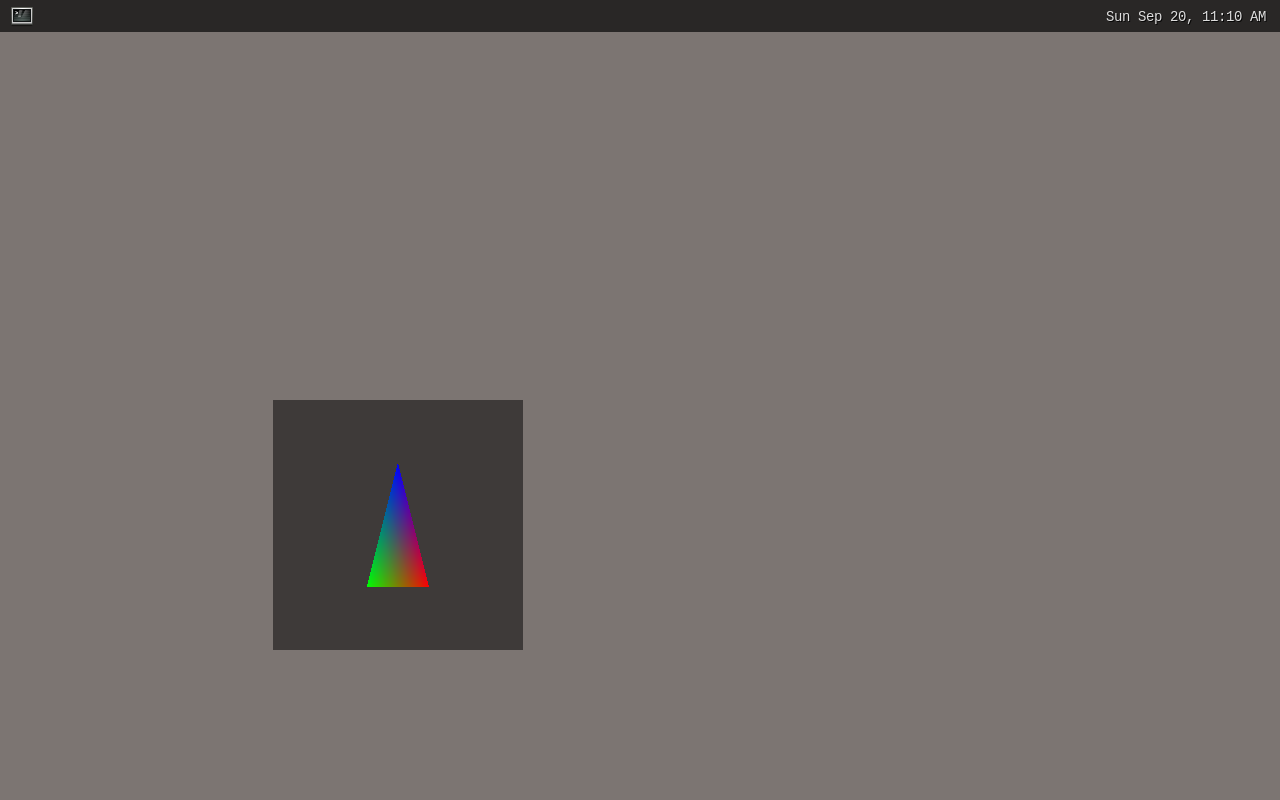
Screenshot of weston-simple-egl
Additional Details
You can find source code for weston-simple-egl in the Weston codebase: $BUILD_DIR/tmp/work/aarch64-poky-linux/weston/8.0.0-r0/weston-8.0.0/clients/simple-egl.c or weston github.
You can find source code in Weston codebase: $BUILD_DIR/tmp/work/aarch64-poky-linux/kmscube/git-r0/git or mesa gitlab.
Further details about the GPU, background theory, or troubleshooting can be found in the BSP User Guide - GPU section.