Common Usage
This page provides a reference for the shared components of the audio system across Genio platforms.
PipeWire
- Supported Platform:
Genio 350-EVK
Genio 510-EVK
Genio 700-EVK
Genio 1200-EVK
Genio 520/720-EVK
PipeWire is a server and user space API to deal with multimedia pipelines. Starting from IoT Yocto v25.1, PipeWire replaces PulseAudio as the default system audio server on the Genio platform.
The following section introduces PipeWire usage, providing example commands and the expected results on the platforms.
Service Status
PipeWire usually runs as a user service, managed by the WirePlumber session manager.
To check the status of the PipeWire service and the WirePlumber:
systemctl --user status pipewire pipewire-pulse wireplumber
If the services are running correctly, you should see them as active (running).
Output Example:
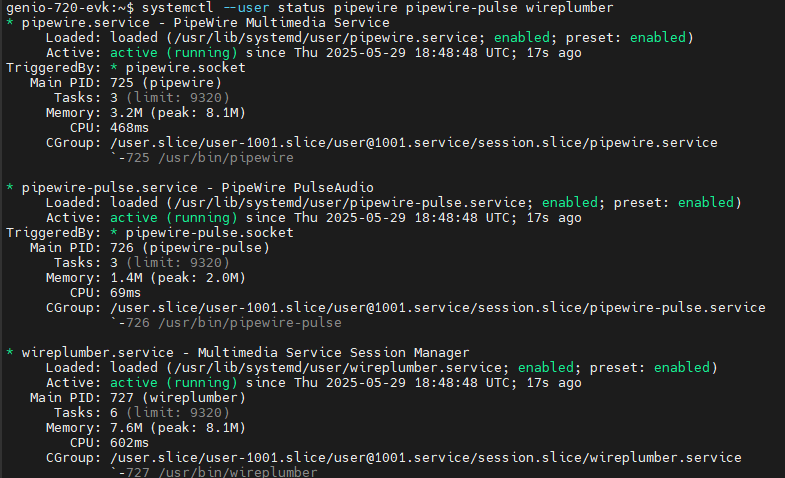
PipeWire service status
To start the services:
systemctl --user start pipewire pipewire-pulse wireplumber
To stop the services:
systemctl --user stop pipewire pipewire-pulse wireplumber
Common Command Line Tools
The Genio platform includes several tools for interacting with PipeWire.
Tool |
Description |
|---|---|
|
The primary CLI for managing volume, routing, and device status. |
|
Real-time monitoring of PipeWire nodes and drivers. |
|
Dumps the current state of the PipeWire graph. |
|
Simple playback tool. |
|
Simple recording tool. |
|
CLI to manage ALSA Card Profiles (ACP) directly. |
Usage Examples
Listing Devices
To see all available audio sinks (outputs) and sources (inputs):
wpctl status
Output Example:
Audio
 ├─ Devices:
 │      47. Built-in Audio                      [alsa]
 │
 ├─ Sinks:
 │      48. Built-in Audio I2S output           [vol: 0.40]
 │      49. Built-in Audio PCM output           [vol: 0.40]
 │  *   50. Built-in Audio Earphone speaker + Lineout speaker [vol: 0.40]
 │
 ├─ Sources:
 │      51. Built-in Audio I2S input            [vol: 1.00]
 │      52. Built-in Audio PCM input            [vol: 1.00]
 │  *   53. Built-in Audio Digital microphone   [vol: 1.00]
 │      54. Built-in Audio Analog microphone + Earphone microphone [vol: 1.00]
 │
 ├─ Filters:
 │
 ├─ Streams:
Note: The * indicates the default device.
Setting Default Output/Input
To change the default audio output/input device, identify the ID from wpctl status (e.g., ID 48):
wpctl set-default 48
Playback and Recording Test
Since PipeWire provides ALSA compatibility, standard ALSA tools can be used:
Playback:
aplay -D pipewire /usr/share/sounds/alsa/Front_Center.wav
Recording:
arecord -D pipewire -f S16_LE test.wav
Alternatively, you can use pw-play and pw-record:
pw-play /usr/share/sounds/alsa/Front_Center.wav
pw-record test.wav
Changing Volume
You can set volume using the ID displayed in wpctl status or by using special targets like @DEFAULT_AUDIO_SINK@ and @DEFAULT_AUDIO_SOURCE@.
Set volume using ID (e.g., ID 48):
wpctl set-volume 48 0.5
Set volume for the default sink/source:
# Set default speaker volume to 50%
wpctl set-volume @DEFAULT_AUDIO_SINK@ 0.5

# Set default microphone volume to 80%
wpctl set-volume @DEFAULT_AUDIO_SOURCE@ 0.8
Adjust volume relative to current level:
# Increase volume by 5%
wpctl set-volume @DEFAULT_AUDIO_SINK@ 5%+

# Decrease volume by 5%
wpctl set-volume @DEFAULT_AUDIO_SINK@ 5%-
Mute/Unmute:
To mute or unmute a device, use 1 (mute), 0 (unmute), or toggle.
# Toggle mute status
wpctl set-mute @DEFAULT_AUDIO_SINK@ toggle

# Explicitly mute
wpctl set-mute @DEFAULT_AUDIO_SINK@ 1

# Explicitly unmute
wpctl set-mute @DEFAULT_AUDIO_SINK@ 0
Debugging
Monitoring Latency and DSP Load
Use pw-top to view real-time statistics regarding quantum size (buffer), sample rate, and DSP usage.
pw-top
Output Example:
S   ID  QUANT   RATE    WAIT    BUSY   W/Q   B/Q  ERR FORMAT           NAME
S   29      0      0    ---     ---   ---   ---     0                  Dummy-Driver
S   30      0      0    ---     ---   ---   ---     0                  Freewheel-Driver
S   48      0      0    ---     ---   ---   ---     0                  alsa_output.platform-soc_sound.HiFi__hw_mt8391evk_1__sink
S   49      0      0    ---     ---   ---   ---     0                  alsa_output.platform-soc_sound.HiFi__hw_mt8391evk_6__sink
S   50      0      0    ---     ---   ---   ---     0                  alsa_output.platform-soc_sound.HiFi__hw_mt8391evk_0__sink
S   51      0      0    ---     ---   ---   ---     0                  alsa_input.platform-soc_sound.HiFi__hw_mt8391evk_3__source
S   52      0      0    ---     ---   ---   ---     0                  alsa_input.platform-soc_sound.HiFi__hw_mt8391evk_20__source
R   53   1024  48000  98.3us   0.6us  0.00  0.00    0    S32LE 2 48000 alsa_input.platform-soc_sound.HiFi__hw_mt8391evk_2__source
R   71      0  48000  62.2us  22.8us  0.00  0.00    0    S16LE 2 48000  + pw-record
S   54      0      0    ---     ---   ---   ---     0                  alsa_input.platform-soc_sound.HiFi__hw_mt8391evk_4__source
S   34      0      0    ---     ---   ---   ---     0                  bluez_midi.server
Inspecting the Graph
To generate a visual representation of the current audio pipeline (nodes and links):
pw-dot
dot -Tpng pw.dot -o pipewire-graph.png
(Requires graphviz package installed)
Output Example:

pipewire-graph.png